
How to Make Your Slides Accessible
From the Quick Access series
April 24, 2026 marks the federal deadline for digital accessibility under ADA Title II. At UC Davis, our commitment to accessibility will honor both the mandate and our Principles of Community as we remove barriers for all learners. Part of a series continuing from fall 2025, Quick Access this quarter will focus on improving accessibility in specific teaching and learning contexts. Find all the posts in this series by clicking the yellow Quick Access label at the end of the post.
For more on campus compliance with this law, see UC Davis Digital Accessibility Program Manager Brad Starkey-Owens’ conversation on digital accessibility with Dr. Andy Jones and check the campus Digital Accessibility site. Join the Digital Accessibility Program Manager for Digital Accessibility Q&A Wednesdays at 10:00 AM.
When we think about presentation slide accessibility, we often focus on font size or color contrast. Faculty should also consider the following less obvious practices that can support students who use screen readers or who depend upon alternative formats.
First, give every slide a unique title. Screen reader users often navigate by skimming titles, much like sighted users scan headings. If several slides address the same topic (e.g. “Consequences of World War I”), tweak the wording: “Political Consequences” vs. “Social Consequences.” Distinct titles help students quickly orient themselves.
Titles only function correctly if you use a Title slide layout. You can’t designate text as a title after the fact. Also, avoid adding separate text boxes to your slide layout—screen readers may not recognize them.
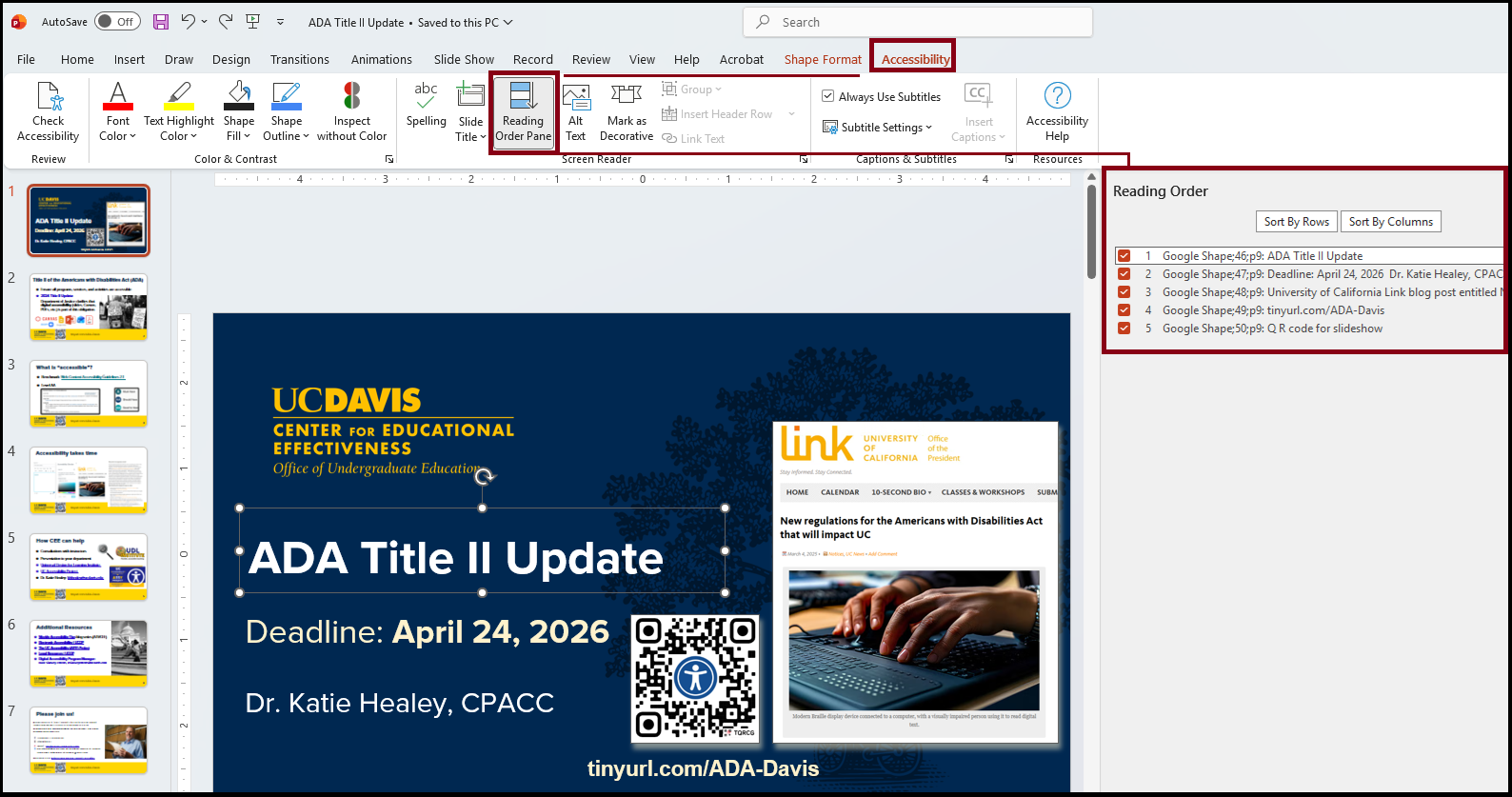
Another important consideration is reading order. Screen readers need to be told what to read first; otherwise, elements may be announced in a confusing sequence, such as with the title being read last. In Google Slides and PowerPoint, titles, text boxes, images, and other slide elements are positioned in invisible layers in relation to each other. The order of these layers, which you can change, controls reading order. You can also drag elements to reorder them in PowerPoint’s Review–Check Accessibility: Reading Order Pane. The slide number should be read first, followed by the title, and then the main content.
To check reading order, click a blank area of the slide and press Tab repeatedly. The order objects are selected is the order a screen reader will follow.
Finally, limit animations and motion to moments where they add instructional value. Excessive motion can be distracting, increase cognitive load, and trigger vestibular symptoms for some users.