



Making Tables Accessible in Canvas Online Courses
From the Quick Access series
April 2026 marks the federal deadline for digital accessibility under ADA Title II. At UC Davis, our commitment to accessibility will honor both the mandate and our Principles of Community as we remove barriers for all learners. Part of a series to be published during the fall of 2025, this post explores what accessibility means in practice and ways we can all contribute. Find all the posts in this series by clicking the yellow "Quick Access" label at the end of the post.
For more on campus compliance with this law, see UC Davis Digital Accessibility Program Manager Brad Starkey-Owens’ conversation on digital accessibility with Dr. Andy Jones and check the campus Accessibility site. Also consider joining the UC Accessibility Project or registering for the Universal Design for Learning Institute this fall (held each Friday this fall at 10:30AM on Zoom) for additional accessibility support.
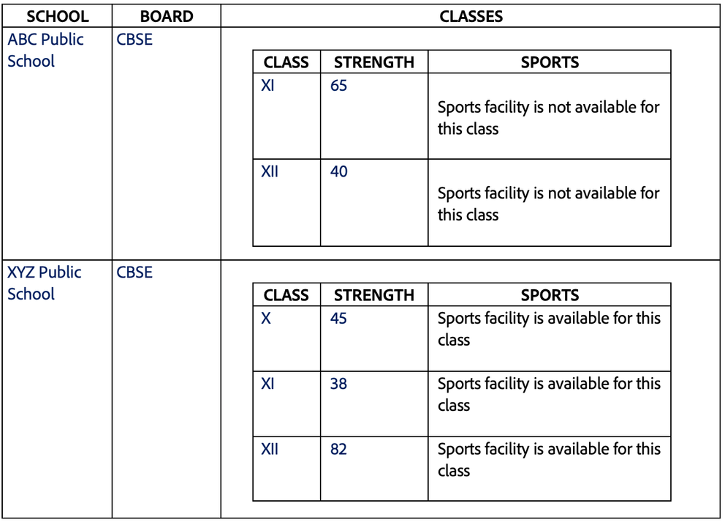
Tables are powerful tools for organizing data, but if built poorly they can create barriers for students using screen readers or other assistive technologies. Tables should be reserved for data, kept simple, and never used for layout or nesting.
One common mistake is nested tables—placing one table inside another. Think of matryoshka dolls: a screen reader may detect the outer “doll,” but the inner ones remain hidden. That “inner” information remains inaccessible. Instead of nesting one table inside another, consider creating multiple tables.
A clear caption is the first step to accessibility. Captions clarify each table’s purpose and help students tell tables apart if you replace nested tables with separate ones. With the “T” key, screen reader users can jump between tables, hearing each caption as they go. Without captions, navigation becomes difficult.
Headers are equally important. Marking row and column headers ensures that as students move across cells, the associated headers are read aloud, preserving meaning and context.

Canvas makes much of this straightforward. Its Accessibility Checker flags missing captions and allows simple headers to be marked. More advanced structures, like grouped headers, require manual adjustments. Instructors can highlight cells, open Cell Properties, and assign the correct scope to merge and mark them.

If a table is available only as an image, it should be converted into an accessible HTML table. AI tools can quickly rebuild it with captions, scopes, and headers applied, ensuring full accessibility.
Accessible tables are necessary to teach inclusively. Take time to improve yours, and if you’re unsure how, don’t hesitate to reach out for support at [email protected]. Every step makes your course more inclusive.